
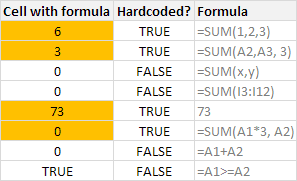
Here is a common problem. Imagine you are looking at a complex spreadsheet, aptly titled "Corporate Strategy 2020.xlsx" which has 17 tabs, umpteen formulas and unclean structure. Whoever designed it was in insane hurry.
The workbook has formulas like this:
=SUM(Budget!A2:A30, 3600)+7925
So how do you go about detecting all cells containing formulas with hard-coded values?
Alas, the usual methods fail. To solve this problem, let's build 'Detect hard-coded formulas' feature for Excel.
Full article: How to check for hard-coded values in Excel formulas?
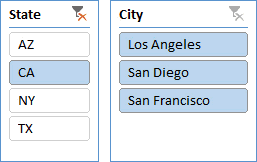
Beginning with Excel 2013 for Windows, we can use Slicers to filter table data. In this post, we'll explore how to use Slicers as a relatively easy alternative to conditional drop-downs.
There are many benefits to using the Slicers approach, including, Slicers automatically create unique buttons from a column with duplicate values, automatically include scroll bars if needed, and automatically sort the buttons.
Full article: Slicers as an alternative to conditional drop downs
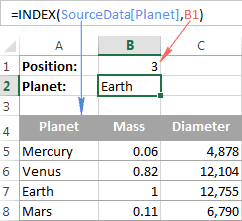
In this tutorial, you will find a number of Excel INDEX formula examples that demonstrate the most efficient uses of INDEX in Excel.
Perhaps there aren't many practical uses of Excel INDEX by itself, but in combination with other functions such as MATCH or COUNTA, it can make very powerful formulas. For example:
- Get nth item from the list.
- Get all values in a row or column.
INDEXwith other Excel functions.- Excel
INDEXformula for dynamic range. VLOOKUPwithINDEX/MATCH.- Get one range from the list of ranges.
Full article: 6 most efficient uses of the INDEX function in Excel
In many case, we may want to combine texts from different cells. This can be done by either CONCATENATE function or simply an ampersand &.
If you are doing so because you want to perform VLOOKUP with 2 lookup values, the robust way to combine texts should include a delimiter in between, e.g. A1 & "|" & B1.
Why? Because laziness has a price.
Full article: Pay attention when you concatenate
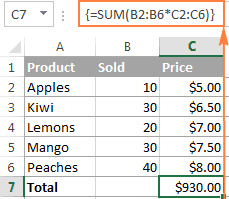
In this tutorial, you will learn what an Excel array formula is, how to enter it correctly in your worksheets, and how to use array constants and array functions in Excel.
Topics covered:
- What is an array formula in Excel?
- How to enter an array formula (CTRL + SHIFT + ENTER).
- How to evaluate portions of an array formula (F9 key).
- Single-cell and multi-cell array formulas in Excel.
- Excel array constants.
ANDandORoperators in Excel array formulas.- Double unary operator in array formulas.
Full article: Excel array formulas, functions and constants - examples and guidelines
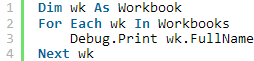
Loops are by far the most powerful component of VBA. The aim here is to provide you with an in-depth guide to using loops, written in plain English. The following questions will be addressed:
- What are loops?
- Why you need them?
- When should you use them?
- How do they work?
- Which one should you in a given situation?
Full article: The ultimate guide to loops in Excel VBA
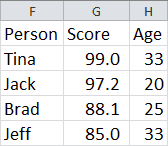
I am going to show you how to use Excel functions to create a new table from your current table and have it dynamically sorted.
We have a list of people, scores and age. We want to create another table and have it dynamically sort descending the data so it changes as your main table data changes. Change anything in the original table and you will see your new table dynamically sort!
Full article: Using Excel functions to dynamically sort data
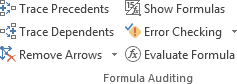
Once you've created a spreadsheet or you get one from someone else, one of the more painful things you end up doing at some point is trying to work out which cells feed into any of the formulas throughout the workbook or alternatively, which cells are dependent on any given cell(s).
So how can you check this without spending hours looking at all the cells in your worksheet/workbook? This is where the FORMULA AUDITING tools come in.
Full article: Using the Formula Auditing tools

You may want some way of pausing or delaying VBA code execution and you can do this with two functions called Wait and Sleep. You can also do this using a loop, and we will look at that approach too.
Why would you pause the code? Maybe you need to wait for another task to finish, for instance if you made a call to a Windows API/shell function. Or you may want to wait for the user to update data in the sheet, or you just want to run a macro at a set time.
Full article: Pausing or delaying VBA using Wait, Sleep or a loop