
Guidelines:
- Values are not hard-coded in formulae
Including values in a formula – known as hard-coding – is a common, high-risk, practice that often leads to errors.
Examples of hard-coding
Hard-coding values in formulae is very common. It is also a very common cause of errors.
There are many ways in which values can be hard-coded in formulae. For example:
- In the formula
=0.3*B7, what does the hard-coded value0.3mean? If the cell is labelled "Tax", then we might infer that the tax rate is 30%. But what if the tax rate changes? We shouldn't simply search and replace all0.3values with the new rate, as some of the values may have other meanings. - The formula
=SUMIFS(B5:B32,A5:A32,">="&DATEVALUE("10/01/2024"))sums values from a specified date. A better formula would put the date in a cell, say D3, and then refer to that cell:=SUMIFS(B5:B32,A5:A32,">="&D3). That approach makes the date visible, easier to change, and the formula is now simpler. - This formula has several hard-coded values:
=IF(A2="M",-16.48-0.12*D2+1.99*W2,-9.15-0.015*D2+1.37*W2). Their meanings are not obvious. Each value needs to be extracted from the formula and put in separate cells. We can then label the values, to indicate their meaning.
In this context, we don't just mean numbers. Hard-coded values can also include dates, text, and arrays (for example, {1,2,4,8,16}).
Problems with hard-coding in formulae
Potential problems that can result from hard-coding values in formulae include:
- The meaning of the data may not be clear. Even if the meaning is clear when the formula is written, will it still be clear to another user later?
- Updating the data may be problematic, as the user must find and replace each instance of every value, without incorrectly replacing different data with the same value. Not only is this inefficient, but being confident that all instances have been found and replaced correctly may be difficult.
- Results may be incorrect, due to multiple, inconsistent copies of the data being used.
Hard-coded values might cause problems later
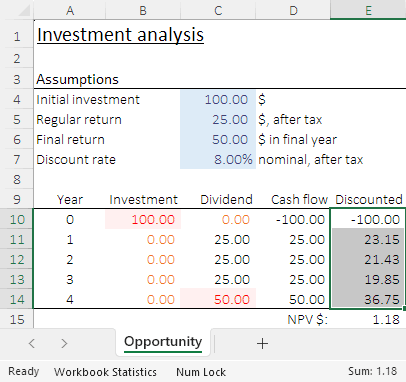
The image shows a discounted cash flow model designed to evaluate an investment opportunity. That is, given an initial investment amount, the opportunity returns a series of annual dividend payments plus a final payment. The net cash flow each year is intended to be discounted using a rate of 8.00% pa, as specified in C7.
In E15, we use the NPV function to calculate the Net Present Value of the cash flows (adjusted for the appropriate timing of those cash flows). The positive NPV of $1.18 indicates that this is a worthwhile investment.
As a check, we select the discounted cash flows in E10:E14 and note that the sum displayed in the Status Bar matches the calculated NPV.
We then decide that the discount rate should be 9%, so we make that change in C7. The Status Bar now says that the sum of E10:E14 is -1.30, while the NPV is still 1.18. So, what went wrong?
Like in a real spreadsheet, the image hides the problem. We can see the value in E15 is displayed as 1.18. What we don't see is that the formula in E15 is =D10+NPV(0.08,D11:D14). That formula was correct when the discount rate was 8%, but that rate is hard-coded in the formula. Changing the assumption in C7 has no effect on the NPV calculation.
The correct formula should be =D10+NPV(C7,D11:D14), which now returns the correct NPV of -1.30. Importantly, using the higher discount rate, the NPV is negative – meaning that the investment opportunity is not worthwhile.
A further improvement would be to name the discount rate cell, then use that name in all formulae that use the discount rate. For example, C7 could be named DiscountRate, or possibly Disc as a short name. The formula in E15 would then be =D10+NPV(Disc,D11:D14). Using the named range makes it easier to interpret the formula. It would also make it easier to find all cells that use the discount rate.