

Guidelines:
- There are no merged cells
- Use alternatives to merged cells, such as Center Across Selection or a Text Box
The cell grid is a fundamental feature of spreadsheets. Merged cells break the regularity of the grid structure, leading to many issues. Fortunately, there are better alternatives for achieving the same type of formatting.
Put simply: Do not use merged cells.
Problems due to using merged cells
Using merged cells leads to many problems and breaks many of Excel's features – or at least causes them to behave in unexpected ways.
For example:
- There may be a loss of data when merging cells.
- Copying and pasting merged cells can cause errors and unexpected results. For example, when pasting values into a merged cell, Excel may display the message "To do this, all the merged cells need to be the same size".
- Selecting cells may not work as expected. For example, when selecting cells, the selected area will expand to include all rows and columns included in the merged cell. That may not be what was intended and continuing with the paste may overwrite additional cells.
- Sort does not work across a mixture of merged and non-merged cells.
- Unmerging cells behaves oddly. For example, put a value in
B1and leaveA1empty. MergeA1andB1. Then unmergeA1andB1– the value fromB1is moved toA1andB1is empty, the opposite of how we started. - Several features, such as Remove Duplicates, don't work correctly, or at all, with merged cells.
- In VBA, trying to write to merged cells (other than the top-left of the merged range) will fail. There is no warning or error message – simply nothing happens.
Merged cells behave differently depending on how they were formed

There are three main ways to create merged cells:
- Via Home > Alignment on the ribbon (as shown in the image).
- Via Home > Font > Format Cells > Alignment on the ribbon.
- By using the Format Painter to paint from existing merged cells.
The first two methods behave the same way. That is, when you merge cells, all values in those cells are lost except for the value in the top-left cell. For example, if you have formulae that refer to the values in A1, B1, and C1 respectively, and merge the range A1:C1, then only the value in A1 is retained and the others disappear. The formulae that refer to B1, and C1 will now return 0, as if those cells are empty. Though, in a sense, those cells no longer exist.
However, the third method, using Format Painter, behaves differently. In the situation above, if we paint the range A1:C1 with cells copied from a merged range, then only the value in A1 is shown – looking exactly like it did above. But the other values are still there, and they can be referred to. That is, the formulae referring to B1 and C1 continue to display those values, even though they are not visible, and those cells cannot be selected.
This inconsistency is confusing, especially as most merged cells are created using one of the first two methods and many people are not familiar with the differences that arise from the third method.
Alternatives to merged cells
Instead of using merged cells horizontally, use Center Across Selection. The appearance is identical to merged cells, but the behaviour is better.
However, Center Across Selection doesn't work for vertical cells. Having text at the top of a block is usually preferable to having vertically centered text. But if you must have vertically centered text, then use a Text Box instead of merging cells vertically. Note that a Text Box can link to a cell, so the contents can be constructed from data and be dynamic.
For example, the top block of the image shows merged cells A4:A7 with middle vertical alignment, while the bottom block shows a Text Box with middle vertical alignment, no borders, no fill, and margins of zero except for 0.07 left margin (to align with the Region heading).
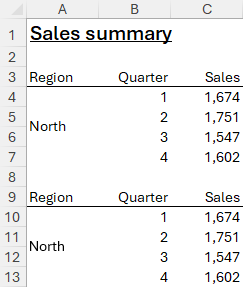
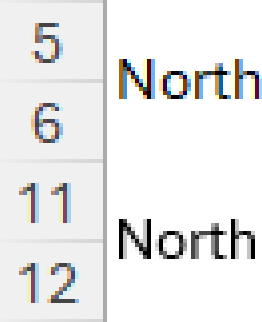
Note that there may be subtle differences between how merged cells and a Text Box are displayed, even though the font and font size are the same. For example, using Excel 365 on Windows 11, the characters of the two "North" labels are rendered with slightly different sizes (the merged text is two pixels wider) and the merged text has colored fringe pixels while the Text Box text has grey pixels. These differences are usually not noticeable.
Finding merged cells

To find ranges with merged cells:
- Press
Ctrl+fto open the Find and Replace dialog box. - Click the Options button.
- On the expanded dialog, click the Format button to open the Find Format dialog.
- Select the Alignment tab.
- Untick Wrap Text and Shrink to fit so the Merge Cells option is the only one selected, then click OK.
- Ensure that the Find what field is empty.
- Finally, click Find All.
As shown in the image, the dialog will display a list of all ranges that have merged cells.
Having found the merged cells, you can fix them by applying better formatting, such as Center Across Selection or a Text Box.